
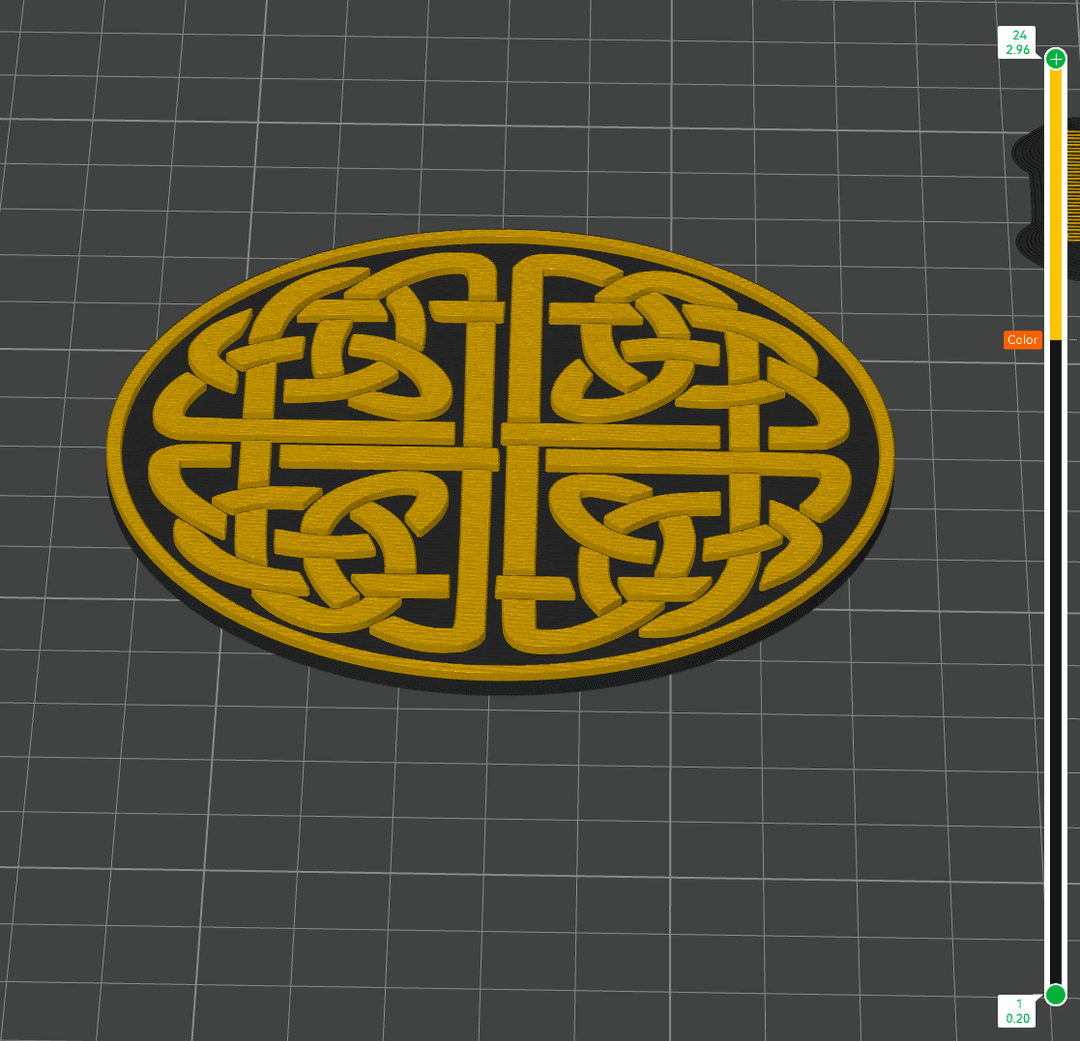
I was printing a two-color Celtic coaster which had a knotwork design where the knot prints in one color and the base in another. This should have been simple enough; slice the model, set a filament change at the right layer when the knotwork started, and print.
Except when I right-clicked the layer slider in Bambu Studio, the "Change Filament" option was grayed out. No tooltip, no error, it was just disabled without a clear reason why.
I searched around and eventually found the answer buried in a Reddit thread. Posting it here so the next person doesn't have to dig.
The fix
Three things need to be true for "Change Filament" to be enabled:
-
Print sequence must be set to "By Layer": If it's set to "By Object," filament changes are disabled. Go to the print settings and make sure the sequence is set to "By Layer." Mine was already set to this, so I knew it was something else.
-
No paint-on colors on the object: If you've used the paint tool to assign colors directly onto the model, the slicer treats it as a multi-color paint job, not a layer-based filament swap. Remove any color painting from the object first. I checked again to make sure I didn't have any paint by using the "erase painting" button, and the option was still disabled.
-
No other objects on the build plate: Even if another object is marked as "not printable," its presence on the plate can disable the option. Remove or delete any extra objects so only your target model is on the plate. I moved the non-printable objects off to the side, and the option was finally enabled, letting me set the filament change to the gold silk.
Once all three are cleared, right-click the layer slider and "Change Filament" should be available.
The print: Celtic knotwork coaster
The coaster I was printing is a Celtic knot design, the kind of interlocking pattern you'd see in the Book of Kells or carved into a stone cross. It works well as a two-color print because the knot and background are on distinct layers, so a single filament change gives you clean contrast without any multi-material setup. It's also better suited for a filament change operation than the paint approach since you'd have more of the color than just the last layer.
I printed it in black PLA for the base and a gold silk filament from Sunlu for the knotwork to give it a premium look. The filament change happens at the layer where the knot pattern starts so it pauses, swaps filament, and resumes.
The model is available on Thingiverse under a CC BY-SA license, so you're free to print, remix, and share it.
Quick tips for clean two-color prints
- Purge the old color. When the printer pauses for the filament change, it'll extrude a small purge line. If the colors are very different (white to dark green), you might want to manually extrude a bit extra to make sure the nozzle is fully primed with the new color.
- Avoid translucent filaments for the top color. If the second color is translucent or light, the first color can show through. Opaque filaments give the cleanest result.
- Preview the layer in the slicer. Use the layer slider to scrub through and confirm the change happens exactly where you want it. One layer off and you'll get a stripe of the wrong color.
Two-color prints are one of the easiest ways to make something that looks way more impressive than the effort involved. No AMS needed, no multi-material setup. Just one pause and a filament swap. For my setup, I have a couple slots on the AMS for colors that I can swap out depending on the print and keep the other two for white & black. This has been working well for me since the Bambu A1 doesn't support multiple AMS-lites or using the external spool with the AMS, which I wrote about in another post.